
A frozen infotainment screen is one of the most annoying problems in a modern Honda Civic. The good news is that almost every freeze, glitch, or black screen can be fixed without a trip to the dealer.
The reset method depends on your Civic’s generation. Honda changed the entire button layout between the 10th Gen and the 11th Gen, so a combo that works on one model year will do nothing on another.
This guide breaks down the exact steps for both generations, covers the hidden diagnostic reboot on 9-inch screens, and explains how to fix wireless CarPlay and Android Auto freezes for good.
Step 1: Know Your Civic Generation

Before you touch any buttons, confirm which generation you own. The two systems are not interchangeable.
- 10th Generation Civic: model years 2016 through 2021
- 11th Generation Civic: model years 2022 through 2026
If you are not sure, check your infotainment screen’s shape. The 10th Gen uses a wider, shorter display. The 11th Gen uses a more square-shaped touchscreen with a redesigned home button.
Step 2: Reset the 10th Gen Civic (2016-2021)

The 10th Gen Civic came with two screen sizes. The base trims got a 7-inch Display Audio unit. Higher trims like the EX-L and Touring got a similar screen with extra features, but the reset process is nearly identical.
Basic Soft Reset (7-Inch Display Audio)
This works for a frozen screen, a black screen, or a system that will not respond to touch.
- Press and hold the Power/Volume knob on the left side of the screen.
- Keep holding for about 10 to 15 seconds.
- Release once the screen goes black and the Honda logo reappears.
- Wait 30 to 60 seconds for the system to fully reboot.
This soft reset does not erase any saved data. It simply restarts the head unit, similar to restarting a phone.
Full System Reset (10th Gen)
If the soft reset does not fix the issue, try a full reset from the settings menu.
- Tap the Settings icon on the home screen
- Scroll to System
- Select Reset, then choose Reset All Settings
- Confirm when prompted
This deeper reset clears more corrupted data than the button hold. It still keeps your paired phones on most 10th Gen models, but always double-check before proceeding.
Step 3: Reset the 11th Gen Civic (2022-2026)
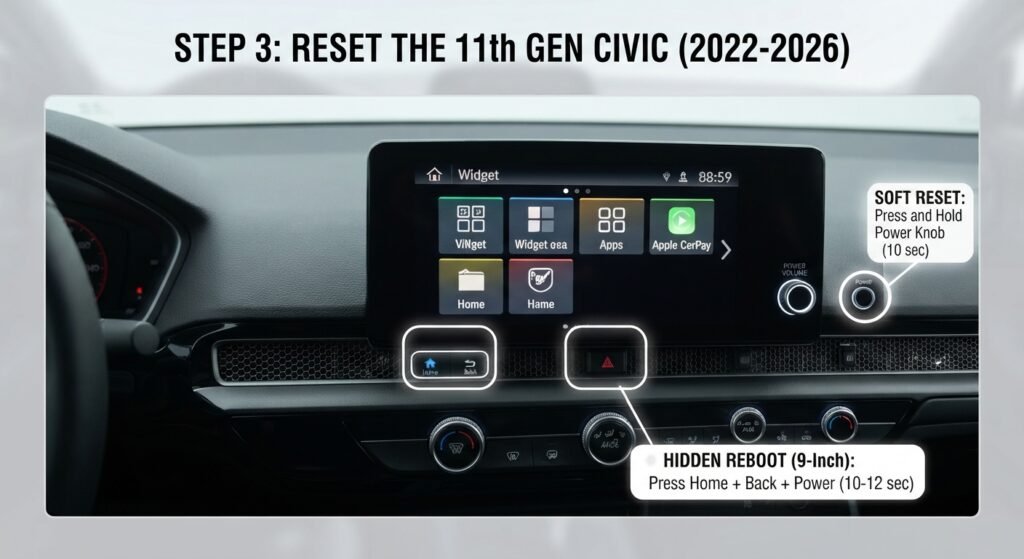
Honda redesigned the infotainment hardware for the 11th Gen. The button layout is completely different, and there is a larger 9-inch touchscreen option on Sport, EX-L, and Touring trims.
Basic Soft Reset (11th Gen)
- Press and hold the Power knob, located on the right side of the screen.
- Hold for approximately 10 seconds.
- Release when the screen turns off completely.
- The screen will restart on its own within a minute.
This is the fastest fix for a minor glitch, a frozen home screen, or audio that has stopped responding.
Hidden Diagnostic Reboot (9-Inch Touchscreen Only)

The 9-inch touchscreen has a lesser-known combination that forces a deeper reboot. Owners often find this after a normal restart fails to clear a stubborn freeze.
- Locate the Home button, the Back button, and the Power/Volume knob.
- Press and hold all three at the same time.
- Continue holding for about 10 to 12 seconds.
- Release once the screen flashes black and the Honda splash screen appears.
This diagnostic reboot reaches deeper into the system than a simple power hold. It is the go-to fix when the screen is fully unresponsive to touch and a regular soft reset has already failed.
Common Problem: Screen Freezes During Wireless CarPlay or Android Auto

This is one of the most reported complaints among US Civic owners. The screen freezes mid-call, mid-song, or mid-navigation while running wireless Apple CarPlay or Android Auto.
The freeze usually comes from a weak Bluetooth or Wi-Fi Direct connection between your phone and the head unit. It can also come from a corrupted pairing profile that the system keeps trying to reload.
Quick Fix for a Mid-Session Freeze
- Press the Home button once to see if the system responds
- If nothing happens, do the soft reset for your generation
- Reconnect your phone once the system restarts
How to Clear a Corrupted Phone Pairing Profile
If your Civic keeps freezing or rebooting every time a specific phone connects, the saved pairing profile is likely corrupted. Deleting and re-adding it usually stops the reboot loop.
- Go to Settings, then Bluetooth or Phone.
- Find the paired phone in the device list.
- Select Delete or Forget Device.
- On your phone, go to Bluetooth settings and forget the car as well.
- Restart the infotainment system using the soft reset for your generation.
- Re-pair your phone from scratch.
This process wipes the old, corrupted connection data without touching any other settings in the car. It is the single most effective fix for endless reboot loops tied to CarPlay or Android Auto.
Warning: What a Full Factory Data Reset Actually Erases

A full factory reset is the nuclear option. It should only be used after the soft reset, diagnostic reboot, and pairing profile fix have all failed.
| Before you factory reset, know what you will lose:Every saved navigation route and favorite destination will be erased.All paired phones and Bluetooth pairing profiles will be deleted.Custom radio presets will be wiped and reset to factory defaults.Personalized display and sound settings will also be reset. |
None of this data can be recovered once the reset is confirmed. If you rely on saved presets or frequent navigation routes, write them down first.
To perform a full factory reset, go to Settings, then System, then Reset, and choose Factory Data Reset. Confirm the prompt and allow several minutes for the process to finish.
Advanced Fix: Hard Hardware Crash and Battery Disconnect
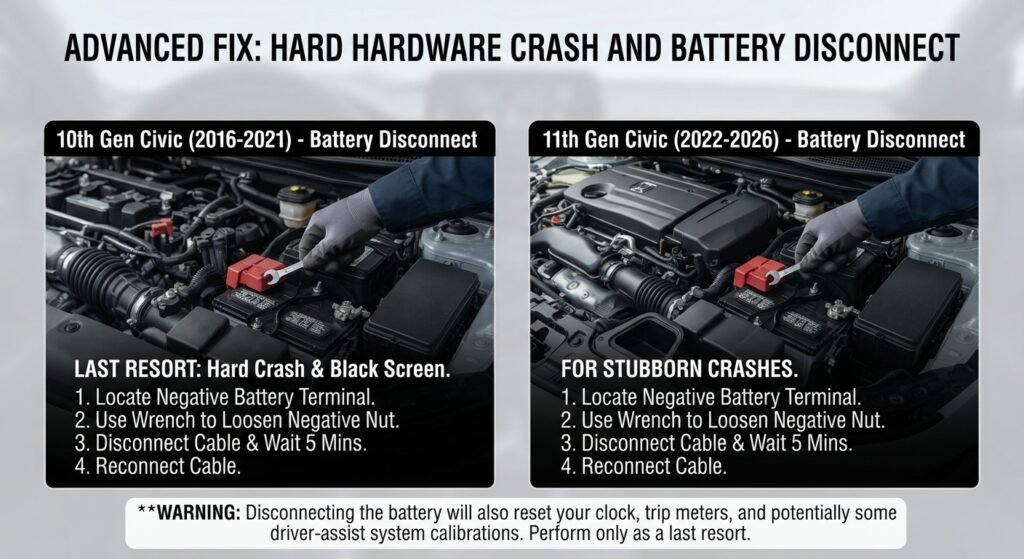
Sometimes the screen goes completely black and stays that way. No button combination brings it back. This usually points to a hard hardware crash rather than a software glitch.
In this situation, disconnecting the car battery can force a full power cycle of the head unit. This is a more invasive step, so treat it as a last resort.
- Turn off the vehicle and remove the key or fob from the car.
- Open the hood and locate the battery.
- Use a wrench to loosen the nut on the negative (black) terminal only.
- Lift the negative cable off the terminal and move it aside so it cannot touch metal.
- Wait 5 minutes to let the electrical system fully discharge.
- Reconnect the negative terminal and tighten the nut securely.
- Start the car and check the infotainment screen.
Never touch the positive terminal first, and never let a wrench bridge both terminals at once. This step can reset other electronics in the car, such as the clock and some driver memory settings, so expect to reconfigure a few small preferences afterward.
When to Call Your Honda Dealer

Most infotainment issues clear up with a soft reset or the diagnostic reboot. If the screen stays black after a battery disconnect, or if it keeps crashing right after every restart, the head unit itself may have failed.
A dealer can run a full diagnostic scan and check for an outdated software version. Honda has released infotainment software updates in the past specifically to fix freezing and CarPlay connectivity bugs.
Final Thoughts
A frozen or glitchy Honda Civic infotainment screen is frustrating, but it is rarely a serious problem. Start with the simple soft reset for your generation, then work your way up to the diagnostic reboot or a pairing profile fix.
Save the factory reset and battery disconnect for true last resorts. Both work well, but only after the simpler fixes have had a fair shot.